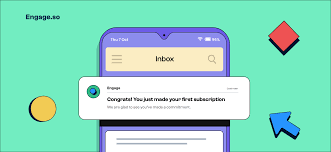
Email preview text is the snippet of text that appears right after your email’s subject line in an inbox. It acts as a secondary hook to encourage recipients to open your message. Crafting effective preview text is key to improving open rates, as it provides a glimpse into the email’s content.
What is Email Preview Text?
Think of your inbox like a busy street. Your email preview text is like a friendly sign pointing to your store. The subject line gets their attention.
But the preview text gives them a little more detail. It tells them what they might find inside your email. It’s that little peek.
It’s often the second thing someone sees. This makes it a big deal.
Most email programs show this text. This includes Gmail, Outlook, and mobile apps. They usually show a few words or a sentence.
It’s a small space. But it can do a lot of work for you. It’s your chance to say more.
It’s your chance to sell the click.
This text comes from the start of your email. It’s what your email begins with. But you can control it.
You can tell the email system what you want to show. This is better than letting it pick random words. You want to guide their choice.
You want to make them curious.
Good preview text makes your email stand out. It can feel personal. It can feel urgent.
It can feel valuable. Bad preview text can make your email look like junk. It can make people hit delete.
It’s really about what you want to say. And how you want to say it quickly.
Why Email Preview Text Matters So Much
Imagine you’re walking down that busy street. You see a shop sign. It says “Sale!” That gets you thinking.
But then you see a little card below it. It says “50% Off All Shoes Today Only.” Now you’re really interested. That’s what good preview text does.
It adds detail. It adds a reason to stop and look.
In a crowded inbox, emails fight for attention. People scan them fast. They decide to open or not very quickly.
The subject line is the first fight. Preview text is the second. If both are weak, your email gets ignored.
You worked hard on the email content. Don’t let it go to waste.
This text can increase your email open rates. Higher open rates mean more people see your message. More people might click links.
More people might buy something. It’s a direct link to success. It’s a simple step with big rewards.
It also helps set expectations. If your preview text is clear, people know what they’re getting. This stops disappointment later.
They won’t feel tricked. This builds trust. Trust is key in email marketing.
It makes people want to hear from you again.
Many brands miss this chance. They just let the email system pick the first few words. These words might be “View this email in your browser.” Or they might be a greeting.
That’s not exciting. It doesn’t tell them anything useful. You have control.
Use it well.
Preview Text vs. Subject Line: The Dynamic Duo
Subject Line: The headline. It must be catchy and concise. It aims to grab immediate attention.
Think of it as the movie poster.
Preview Text: The trailer snippet. It offers a bit more detail. It supports the subject line and expands on the offer or content.
It’s the enticing movie trailer.
Together, they work as a team. A great subject line with weak preview text is a missed opportunity. A weak subject line with great preview text might still get an open.
But both need to be strong.
How to Write Effective Email Preview Text
So, how do you actually do this? It’s not magic. It’s about smart writing.
Think like the person receiving the email. What would make you open it? What details would convince you?
1. Support Your Subject Line: Your preview text should complement your subject. If your subject is “Big News!”, your preview text could say, “We’re launching something new you’ll love.” It expands on the subject.
It gives a hint of what the news is about.
2. Create Curiosity: Ask a question. “Did you know this about ?” Or hint at a benefit.
“Unlock your secret to better sleep.” Make them wonder. Make them want to know the answer.
3. Highlight Key Benefits or Offers: If you have a special deal, say it. “Get 20% off your first order.” Or mention a key takeaway.
“Learn how to save time on your daily tasks.” Make the value clear.
4. Use a Call to Action (Subtly): Sometimes, a gentle nudge works. “Tap to see our latest styles.” Or “Find out more inside.” Keep it short and inviting.
5. Personalize When Possible: If you can use the recipient’s name or mention something specific to them, do it. “John, your weekly style picks are here.” This makes the email feel more direct.
6. Keep it Concise: You don’t have much space. Aim for about 50-70 characters.
Some systems show more. Some show less. It’s better to be short and punchy.
Every word counts.
7. Avoid Spam Triggers: Don’t use too many exclamation points or all caps. Avoid words like “FREE MONEY” or “URGENT.” This can send your email to the spam folder.
8. Make it Mobile-Friendly: Most emails are opened on phones. Phones have less screen space.
Your preview text needs to be clear and short. What shows up on a small screen is key.
Real-World Examples: Good vs. Bad
Let’s see this in action. Imagine an email about a new online course. Your audience is busy professionals.
Contrast Matrix: Preview Text in Action
| Scenario | Weak Preview Text | Strong Preview Text |
|---|---|---|
| Subject: New Course Launch! | “If you are unable to view this email.” | “Master project management in 4 weeks. Learn now!” |
| Subject: Your Weekly Newsletter | “View this email in your browser.” | “Top 3 productivity hacks + interviews with experts.” |
| Subject: Big Sale Happening Now! | “Hello ,” | “Up to 50% off! Don’t miss out on these deals.” |
See the difference? The weak examples are generic. They don’t tell you anything new.
The strong ones offer a benefit. They create interest. They make you want to click.
I remember sending out a newsletter once. I spent ages on the subject line. I thought it was clever.
But I didn’t think about the preview text. It just picked up the first sentence. It was something like, “Welcome to our weekly update.” Nobody opened it.
I was so confused. Then I looked at the preview text. I realized I had failed the second test.
That’s when I learned to treat preview text like a co-star.
Common Mistakes to Avoid
It’s easy to make mistakes with preview text. Most of them come from not giving it enough thought. Here are a few to watch out for.
1. Leaving it Blank: This is the most common mistake. If you don’t set it, the email client will just grab the first bit of text.
This is often a generic link or a greeting. It’s a wasted opportunity.
2. Using Generic or Text: Things like “Click here” or “Read more” aren’t very exciting. They don’t offer specific value.
Make your text unique to the email.
3. Repeating the Subject Line: There’s no need to say the same thing twice. The preview text should add to the subject, not just echo it.
You want to give more reasons to open.
4. Making it Too Long: You have limited space. Long preview text will get cut off.
This can look messy. It can also hide your main message. Stick to the point.
Be brief.
5. Forgetting Mobile Users: As mentioned, phones show less text. Always check how your preview text looks on a mobile device.
What you see on a desktop might be different.
6. Using Poorly Written Text: Typos and bad grammar in your preview text look unprofessional. It can make people doubt the quality of your entire email.
Proofread everything!
Quick-Scan Table: Preview Text Best Practices
- Do: Support the subject line.
- Do: Create curiosity.
- Do: Highlight key benefits.
- Do: Keep it short (50-70 characters).
- Do: Personalize if possible.
- Do: Check mobile view.
- Don’t: Leave it blank.
- Don’t: Repeat the subject.
- Don’t: Use spammy words.
- Don’t: Forget to proofread.
How to Set Your Preview Text
This process is usually quite simple. It depends on the email marketing service you use. Most services have a clear field for it.
When you are building your email, look for a setting related to “Preview Text,” “Preheader Text,” or “Message Snippet.” This field is usually near the subject line setting.
You simply type your desired preview text into that box. It overrides whatever text is at the very beginning of your email. Make sure to save your changes.
Then test it! Send a test email to yourself and a few colleagues. Open it on different devices and email clients.
Some older systems might not support custom preview text. In those cases, you need to be very careful about what you put at the start of your email body. Make sure the first sentence or two is compelling.
But most modern platforms offer this feature. It’s worth checking your platform’s help guides if you’re unsure.
When to Use Different Preview Text Styles
The best preview text depends on your goal. What are you trying to achieve with this email?
For Sales Emails: Focus on the offer and urgency. “Flash sale ends tonight! Get 30% off.” Or “Limited stock: Your favorite items are selling fast.”
For Newsletters: Highlight the most interesting content. “Read our latest interview with and get tips on X.” Or “This week: AI trends and creative inspiration.”
For Announcements: Be clear and exciting. “We’re thrilled to share our new feature!” Or “Join us for an exclusive webinar on .” Make them feel part of something new.
For Updates: Be informative and direct. “Your account has been updated. Here’s what’s new.” Or “Important information about your upcoming order.” Be honest and clear.
For Promotional Offers: Clearly state the value proposition. “Free shipping on all orders this weekend!” Or “Buy one, get one free – ends Sunday!” Make the benefit obvious.
I once worked with a small bakery. They sent out weekly emails about their specials. Their subject lines were okay.
But their preview text was always just “New items this week.” It was boring. We changed it to be more specific. Like, “Warm croissants and fresh sourdough await you!” Or “Try our new pumpkin spice muffins!” Their open rates jumped.
People were excited to see what was new.
It’s all about connecting with your audience. What do they care about? What problem are you solving for them?
What desire are you fulfilling? Your preview text should answer that. It should give them a reason to engage.
Observational Flow: Crafting Your Preview Text
- Know Your Goal: What do you want the reader to do?
- Know Your Audience: What matters to them?
- Draft Subject Line: Make it catchy.
- Draft Preview Text: Support the subject, add value.
- Be Specific: Highlight benefits or offers.
- Keep it Short: Aim for 50-70 characters.
- Create Curiosity: Make them want to learn more.
- Review and Refine: Does it make sense? Is it compelling?
- Test: Send a test email and check on different devices.
Understanding Length and Character Limits
This is where things can get a little tricky. Different email clients and devices show different amounts of preview text. There’s no single perfect length for everyone.
General Guideline: Aim for about 50 to 70 characters. This is a safe range for most inboxes. It’s short enough to be seen on mobile devices.
It’s also long enough to convey a key message.
Desktop vs. Mobile: Desktop clients (like Outlook on a computer) often show more text. They might show up to 100 characters or more.
Mobile apps (like Gmail on an iPhone) are much more restrictive. They might only show 30-40 characters before cutting off.
What Happens When Text is Cut Off: If your preview text is too long, the email client will stop showing it. It might then try to fill the rest of the space with other text from your email. This can look messy.
It might show something like “To view this email.” which is a wasted opportunity. Or worse, it could show something that doesn’t make sense out of context.
Best Strategy: Write your most important message in the first 50 characters. Then, add a little more detail if you have space. This way, the core of your message will be visible no matter what.
I learned this the hard way with an e-commerce client. They had a great sale. Their subject line was “Huge Summer Savings!” Their preview text was something like, “Get ready for summer with our biggest sale ever, featuring discounts on all your favorite items, plus free shipping on orders over $50.
Don’t miss out on these incredible deals!” On a desktop, it looked great. On a phone, it was cut off after “Get ready for summer.” The rest of the message was lost. We had to shorten it significantly to make sure the “biggest sale ever” and “free shipping” part showed up.
Tip: Always use a tool that shows you how your email will look in different inboxes. Many email marketing platforms offer this preview feature. If yours doesn’t, send tests to different email addresses (Gmail, Outlook, Yahoo) and check them on both desktop and mobile.
What This Means for Your Email Strategy
Considering your preview text isn’t just a small detail. It’s a key part of your overall email strategy. It directly impacts how many people actually see the content you worked so hard to create.
1. Increased Engagement: Better preview text leads to higher open rates. This means more eyes on your subject line.
It means more chances for clicks and conversions. It’s a direct path to better results.
2. Improved Deliverability Perception: While not a direct ranking factor for deliverability, a higher open rate signals to email providers that your emails are wanted. This can indirectly help your sender reputation over time.
If people consistently open your emails, providers see you as a valuable sender.
3. Better User Experience: Clear and relevant preview text sets accurate expectations. Recipients know what to expect before they open.
This leads to a more positive experience. They feel less surprised and more satisfied. This helps build loyalty.
4. Competitive Edge: Many businesses still neglect preview text. By mastering it, you stand out.
Your emails will look more professional. They will grab more attention in a busy inbox. This gives you an advantage over competitors.
5. Strategic Content Planning: Thinking about your preview text early in the process can influence your email content. You might frame your subject line and opening sentences differently if you know how they’ll be used.
Stacked Micro-Sections: Preview Text’s Impact
Opens: Direct link to higher open rates.
Clicks: More opens mean more potential clicks.
Trust: Sets clear expectations, builds confidence.
Brand: Professionalism and attention to detail.
Strategy: Integral part of content planning.
Don’t let your emails get lost. Give your preview text the attention it deserves. It’s a small piece of text with a huge impact.
Frequent Questions About Email Preview Text
What is the difference between preheader text and preview text?
These terms are often used interchangeably. “Preview text” refers to the actual snippet seen in the inbox. “Preheader text” is the actual text you set within your email’s code or editor to control what appears as preview text.
So, you set the preheader text to define the preview text.
Can I use emojis in my preview text?
Yes, you can use emojis! Emojis can help your email stand out and convey emotion quickly. However, use them wisely.
Too many emojis can look unprofessional or trigger spam filters. Also, check how they render on different devices, as they can sometimes look different.
What if my email’s first sentence is good, but I want to use different preview text?
This is exactly why you should set custom preview text! If your email starts with “Dear ,” and you want your preview text to be “Limited-time offer inside!”, you can set that custom text. It will override the opening sentence in the inbox view.
Always aim to set custom preview text.
How do I know if my preview text is working?
Track your email open rates! If your open rates increase after you start optimizing your preview text, it’s likely working. You can also use A/B testing to compare different preview text variations and see which performs best for your audience.
What if I don’t set any preview text?
If you don’t set any custom preview text, most email clients will automatically pull text from the very beginning of your email. This could be a greeting, a link to view the email online, or the first sentence of your content. This often results in weak or irrelevant preview text that doesn’t encourage opens.
Should I always use a call to action in my preview text?
Not always. A call to action can be effective, especially for sales emails. However, for newsletters or informational emails, creating curiosity or highlighting a key benefit might be more appropriate.
The goal is to entice the open, so the best approach depends on the email’s content and purpose.
Conclusion
Crafting great email preview text is a simple yet powerful way to boost your email performance. It works hand-in-hand with your subject line. It’s your second chance to make a great first impression.
Think about your audience. Be clear, concise, and compelling. Test your results.
Making this small change can lead to much bigger success in your email marketing efforts.